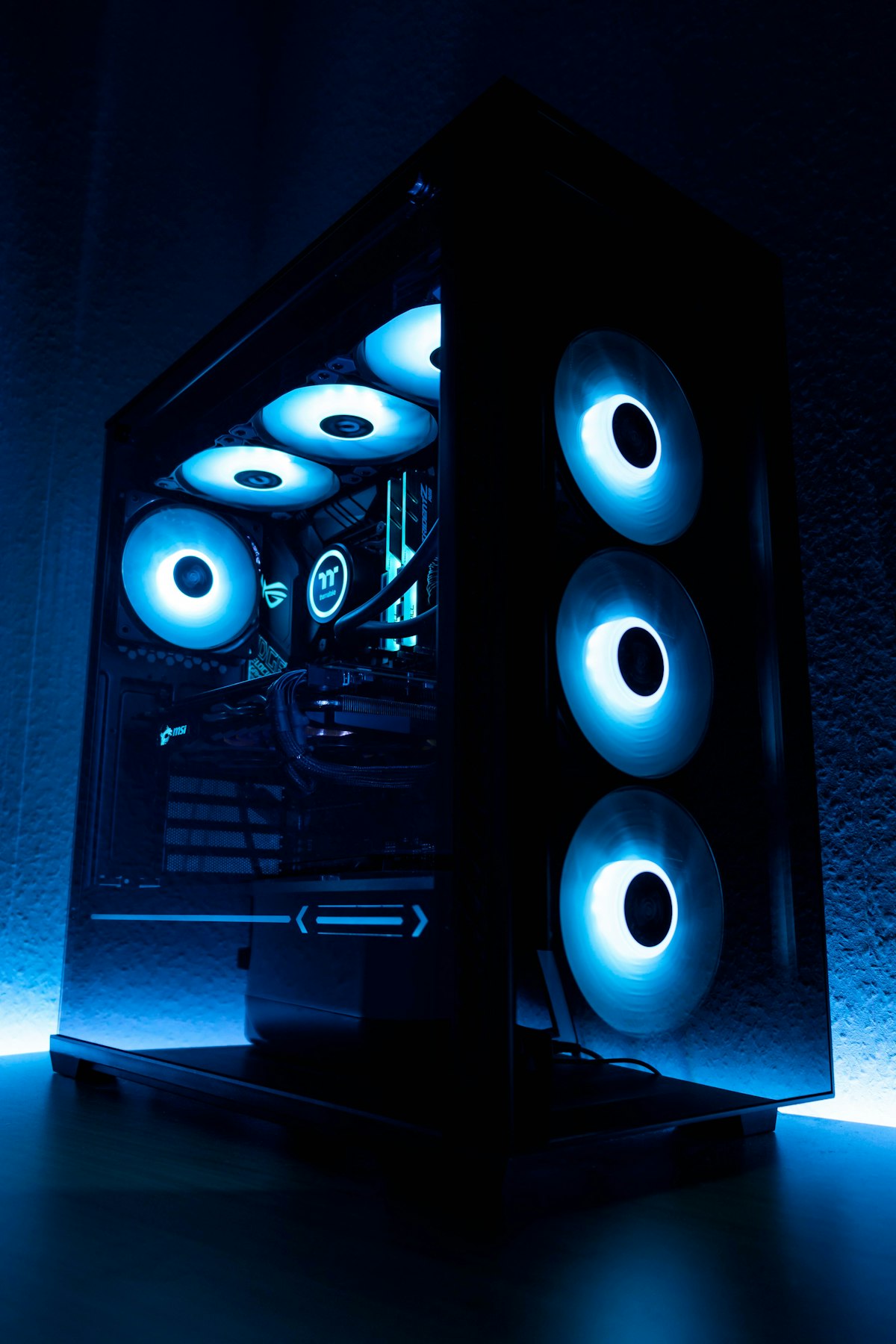
Getting a new gaming PC is exciting right up until you turn it on and realise you are not entirely sure what to do next. Whether you built it yourself, bought a pre-built, or received one as a gift, the first few hours of setup make a significant difference to how well the machine performs long-term. Skip the right steps and you end up with outdated drivers, bloated software, and a PC that runs hotter than it should. This guide walks through everything in the correct order, written for someone doing this for the first time.
Unboxing and First Boot Checklist
Before you plug anything in, take a moment to check the physical setup.
Make sure the PC is on a surface with adequate airflow. If it is a tower, keep it off carpet where possible – carpet generates static and restricts the bottom intake if your case has one. Ensure the monitor is connected to the graphics card output, not the motherboard. This is one of the most common first-time mistakes: plugging the display into the motherboard’s HDMI port means you are running off integrated graphics, not your dedicated GPU.
Connect your monitor, keyboard, mouse and power cable, then boot the machine. On first boot you will either land in Windows setup (if it was pre-installed) or you will need to boot from a USB drive with Windows on it.
First boot checklist:
- Monitor connected to GPU output (not motherboard)
- Power cable plugged into the wall, not a cheap extension lead if possible
- Keyboard and mouse connected (USB preferred for setup)
- Internet connection ready (ethernet is better than Wi-Fi for initial setup)
Installing Windows
If your PC came with Windows pre-installed, you may still want to do a clean install to remove any bloatware the manufacturer added. Pre-built PCs from some manufacturers come loaded with trial software, unnecessary utilities, and startup items that slow things down from day one.
To do a clean install, download the Windows Media Creation Tool from Microsoft’s official site on another device, create a bootable USB drive (8GB minimum), and boot from it. Windows 11 is the current version and is what you should install on any modern gaming PC.
During setup, when asked to sign in with a Microsoft account, you can skip this and create a local account instead if you prefer. For gaming, a Microsoft account is useful if you plan to use the Xbox app or Game Pass, but it is not mandatory.
Activation: If you bought a legitimate copy of Windows, your key is either on a sticker on the machine, in an email from the retailer, or embedded in the motherboard firmware (common on pre-builts). Windows will usually activate automatically once connected to the internet. You can check activation status by going to Settings, then System, then Activation.
Driver Installation Order
This is where many first-time builders go wrong by installing things in the wrong sequence. Order matters.
1. Chipset drivers first. Download these from your motherboard manufacturer’s website (ASUS, MSI, Gigabyte, ASRock, etc.) or from AMD/Intel directly. Chipset drivers enable the rest of your hardware to communicate properly with the CPU. Install these before anything else and restart.
2. GPU drivers second. Go to NVIDIA or AMD’s website directly – do not use the drivers that came on a disc, they will be out of date. Download the latest stable driver for your specific card. During NVIDIA installation, choose “Custom” and tick “Clean Installation” to avoid leftovers from any previous driver. Restart after installation.
3. Other motherboard drivers. This includes audio drivers, LAN drivers (if not already working), and any chipset utilities. Your motherboard’s support page will list what is available.
4. Peripheral drivers last. Gaming mice, keyboards, and headsets often have companion software (Logitech G Hub, Razer Synapse, Corsair iCUE). Install these after the core system drivers are sorted.
Do not download drivers from third-party sites. Stick to manufacturers’ official pages.
Windows Settings to Change for Gaming
Out of the box, Windows is not configured for gaming performance. These are the settings worth changing.
Game Mode: Go to Settings, then Gaming, then Game Mode. Make sure it is turned on. This prioritises CPU and GPU resources towards whatever game is running.
Power Plan: Search for “Power Options” in the Start menu. Switch from Balanced to High Performance. On laptops, only do this when plugged in, as it will drain battery quickly. If you have an AMD CPU, “AMD Ryzen Balanced” is a good alternative to High Performance for that platform.
Notifications: Go to Settings, then System, then Notifications, and turn off notifications during full-screen gaming. Nothing breaks immersion or costs a clutch moment like a Windows notification appearing mid-match.
Xbox Game Bar: Game Bar (Win + G) can add overhead if you do not use it. If you do not plan to use its recording or screenshot features, go to Settings, then Gaming, then Xbox Game Bar and disable it. Use your GPU’s own software (NVIDIA ShadowPlay, AMD ReLive) for recording if needed.
Mouse Acceleration: Go to Settings, then Bluetooth and Devices, then Mouse, then Additional Mouse Settings, then the Pointer Options tab. Uncheck “Enhance pointer precision.” This is mouse acceleration and it makes consistent aim in FPS games much harder. Turn it off.
Installing Steam and Epic Games Launcher
Download Steam from steampowered.com and the Epic Games Launcher from epicgames.com. Both are free. Steam has the largest PC game library by a significant margin. Epic’s launcher is worth having because they give away free games every week – over the course of a year you accumulate a decent library for nothing.
Set your Steam library location to whichever drive has the most space. If you have a secondary HDD alongside your primary SSD, put large games (open world games, anything over 50GB) on the HDD and games where fast load times matter (competitive shooters, frequently played titles) on the SSD.
Checking Temperatures with HWiNFO64
Download HWiNFO64 from hwinfo.com. It is free and gives you real-time temperature, clock speed, and usage data for every component in your system.
Run it in “Sensors-only” mode and launch a demanding game for 20-30 minutes. Then alt-tab out and check the “Maximum” column.
Safe temperature ranges:
| Component | Normal Gaming | Concern |
|---|---|---|
| CPU | 70-85°C | Above 90°C |
| GPU | 75-85°C | Above 90°C |
| NVMe SSD | 40-60°C | Above 70°C |
If your CPU is running above 90°C consistently, check that the cooler is properly seated and that case airflow is adequate. If your GPU is thermal throttling, check that the card’s fans are spinning and that the case has good intake and exhaust.
Updating the BIOS
The BIOS (or UEFI) is the firmware that sits below your operating system and controls how the hardware initialises. Manufacturers release updates that fix stability issues, improve compatibility with new CPUs and RAM, and occasionally improve performance.
When to update: If your system is stable and everything works, you do not need to update the BIOS right away. The rule is: if it is not broken, do not rush to fix it. However, if you are building with a new CPU or experiencing stability issues, a BIOS update is often the fix.
How to update: Go to your motherboard manufacturer’s support page, find your specific model, and download the latest BIOS. Most modern motherboards have a “flashback” or EZ Flash feature that lets you update from a USB drive directly in the BIOS menu. Follow the manufacturer’s instructions exactly – a failed BIOS flash can render a board unusable. Do not turn off the PC during a BIOS update.
You Are Ready to Game
Once drivers are installed, Windows settings are sorted, and temperatures are confirmed as normal, your PC is ready. The setup process is less intimidating than it looks written out – most of it is waiting for downloads and installs to complete. Do it properly once and you will not need to think about it again for a long time.