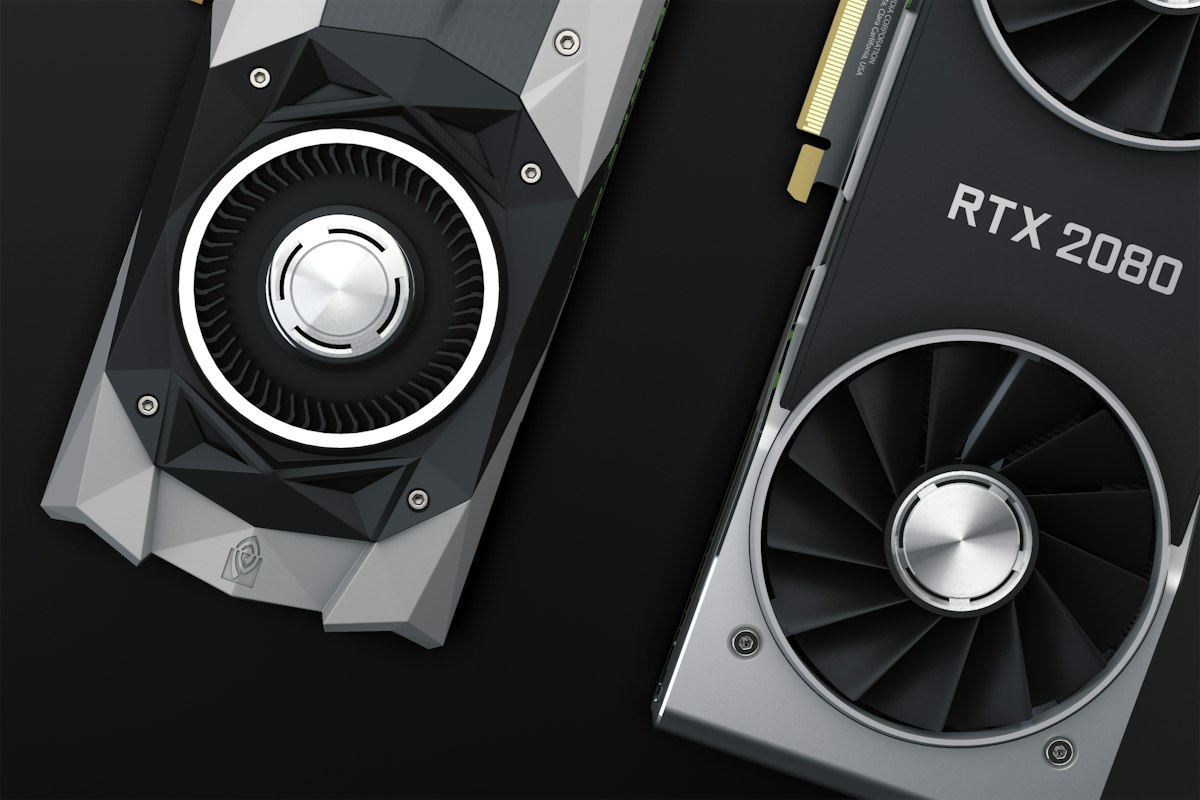
Before you blame your GPU and start browsing for upgrades, try these settings changes. Most players can squeeze 20 to 40 per cent more performance out of existing hardware with the right configuration. Some of these fixes are obvious; some are counterintuitive. All of them are worth checking.
This guide covers Windows settings, in-game options, and hardware configuration. No software to buy, no third-party tools required for the core fixes.
1. Set Your Power Plan to High Performance
Windows defaults to Balanced power mode, which throttles your CPU frequency to save electricity. In gaming, that throttling translates directly to dropped frames, particularly in CPU-bound titles.
Go to Control Panel, then Power Options (or search for it in the Start menu), and switch to High Performance. On laptops, this will drain your battery faster: plug in before gaming. On desktops, the electricity cost is negligible.
On Windows 11 with a Ryzen CPU, look for “AMD Ryzen High Performance” in the power plan list if it exists. This is specifically optimised for Ryzen’s architecture and performs better than the generic Windows High Performance plan in CPU-intensive scenarios.
How much does it help? In CPU-bound games like Civilization, Total War, and simulation titles, the difference can be 10 to 15 FPS. In GPU-bound games at high settings, the impact is smaller but still present in 1 per cent lows.
2. Disable Xbox Game Bar and Game Mode
The Xbox Game Bar runs in the background and consumes system resources. It is a recording and overlay tool that most PC gamers either never use or replace with something better. Go to Settings, then Gaming, then Xbox Game Bar, and turn it off completely.
Game Mode is trickier. Microsoft’s documentation suggests it prioritises gaming processes, and for some players it helps. For others, it causes stuttering by interfering with background process management. The recommendation: disable it, test your performance, then re-enable it and test again. Use whatever gives you better 1 per cent low frame times.
Hardware-Accelerated GPU Scheduling (HAGS), found in Settings, then Display, then Graphics, is a similar toggle. On modern Nvidia and AMD GPUs with recent drivers, enabling it tends to help. On older hardware, it can introduce stuttering. Test both states.
3. Update Your GPU Drivers (Correctly)
Not just “update drivers” but update them properly. Nvidia and AMD regularly push game-specific optimisations, and being two or three driver versions behind can matter in recently released titles.
For Nvidia: use GeForce Experience or download directly from nvidia.com. Use DDU (Display Driver Uninstaller) in safe mode for a clean install if you are troubleshooting persistent issues or switching between driver branches.
For AMD: use AMD Adrenalin. The same principle applies: clean installation is worth doing when troubleshooting, not for every routine update.
Intel Arc users: Intel’s driver development is more aggressive than it used to be, and recent drivers have closed significant performance gaps versus early launch. Keep these up to date.
4. Lower Render Scale Before Dropping Resolution
If you are playing at 1440p and need more performance, drop the in-game render scale to 85 or 90 per cent before dropping your output resolution to 1080p. At 85 per cent render scale on a 1440p monitor, the game renders at roughly 1224p and then upscales. This looks significantly better than native 1080p on a 1440p panel, and the performance improvement is similar.
Most modern games have a render scale or resolution scale slider. It may be called “internal resolution”, “dynamic resolution target”, or something similar depending on the title.
Use this before touching your monitor’s output resolution: scaling down the output resolution removes desktop sharpness everywhere and affects non-gaming use. Render scale stays inside the game.
5. Use DLSS, FSR, or XeSS
If your game supports AI upscaling and you are not using it, you are leaving performance on the table.
DLSS (Nvidia RTX): quality mode delivers near-native image quality at meaningful performance gains. At 1440p gaming, DLSS Quality renders at approximately 960p and upscales. In practice, the result is sharper than native in some lighting conditions due to the temporal accumulation. Performance gain is typically 30 to 50 per cent depending on the GPU and title.
FSR (AMD, but works on any GPU): similar concept to DLSS but uses a spatial algorithm rather than AI. Quality mode looks good; Performance mode is noticeably softer. FSR 3 with Frame Generation adds interpolated frames and is available on more GPUs than DLSS Frame Generation.
XeSS (Intel): uses AI upscaling and runs on any GPU, with better results on Intel Arc cards. Worth trying in supported titles if neither DLSS nor FSR is available.
6. Configure V-Sync Correctly
Standard V-Sync locks your frame rate to your monitor’s refresh rate and introduces input lag when frames drop below that ceiling. For gaming, it is rarely the right choice.
If your monitor supports FreeSync (AMD) or G-Sync (Nvidia), use that instead. These technologies synchronise the display refresh rate to the GPU’s output dynamically, eliminating tearing without the input lag penalty of V-Sync.
Configure G-Sync or FreeSync through your GPU control panel, not your monitor’s OSD alone. For Nvidia, go to the Nvidia Control Panel, then Manage 3D Settings, and set G-Sync to “Enable for windowed and full screen mode”. Then disable in-game V-Sync: the G-Sync will handle tearing prevention.
7. Set Textures Based on Your VRAM
Ultra textures in modern games can consume 6 to 10GB of VRAM. If your card has 8GB or less, running Ultra textures will cause assets to spill into system RAM, triggering stutters that look like frame drops but are actually hitching from the memory bus.
The practical rule: if your GPU has 8GB VRAM, run High textures in demanding titles. If it has 12GB, you can generally run Ultra without problems. Check your VRAM usage in-game via a tool like MSI Afterburner’s OSD: if you are consistently at 95 per cent VRAM utilisation or above, dropping textures one step will eliminate the hitching.
Everything else (shadows, ambient occlusion, volumetric fog) costs less VRAM and can often stay at higher settings. Textures are the primary culprit.
8. Check and Address Thermal Throttling
If your CPU or GPU is hitting its thermal limit, it will reduce its clock speed to protect itself. This is called thermal throttling, and it causes inconsistent frame times that feel worse than a lower but stable frame rate.
Download HWiNFO64 (free). Run it with the sensor overlay active while gaming. Watch the CPU and GPU temperatures. Warning signs:
- CPU temperature consistently at 95°C or above
- GPU temperature consistently at 90°C or above
- CPU or GPU clock speeds that drop significantly lower than their boost spec under load
If you see this, clean the CPU cooler fan and heatsink of dust. Replace the thermal paste on the CPU (a £5 job that can recover significant performance on systems more than two years old). Improve airflow in your case by ensuring intake and exhaust fans are correctly positioned.
For laptops: lift the chassis to allow airflow underneath, or use a laptop cooling pad. Laptop thermal solutions are aggressive by necessity, and dust accumulation compounds the problem much faster than desktops.
9. Put Your Game on an NVMe SSD
A traditional hard drive or a SATA SSD will not directly improve frame rate in most games. An NVMe SSD will not either, in general. But what NVMe storage does dramatically improve is asset streaming: the way open-world games load textures and geometry as you move through the world.
In games with streaming architecture (most modern open-world titles), slow storage manifests as pop-in, hitching as you cross loading boundaries, and brief pauses when new geometry appears. These are especially noticeable on hard drives, less so on SATA SSDs, and largely invisible on NVMe drives.
If you are gaming on a hard drive, a SATA or NVMe SSD upgrade will be the most tangible performance improvement available to you outside of replacing the GPU.
10. Close Background Applications Before Gaming
Chrome with eight tabs open consumes 1 to 2GB of RAM and CPU cycles. Discord with video enabled streams your display. OBS running in the background encodes video constantly. These all compete with your game for resources.
Before launching a demanding title, close what you are not using. Task Manager (Ctrl + Shift + Esc) shows everything running. Sort by CPU or Memory to find the offenders.
One exception: Discord itself, running in voice-only mode with no video or streaming, uses very little. The GPU overlay in Nvidia or AMD’s companion apps is similarly lightweight. You do not need to close everything: focus on CPU and RAM consumers.
Benchmarking Your Changes
To accurately measure the impact of any individual change, test consistently:
- Use a repeatable in-game benchmark tool where available (most AAA titles have one)
- If none exists, run the same gameplay section twice under identical conditions
- Record both average FPS and 1 per cent low FPS: average tells you typical performance, 1 per cent low tells you how smooth it feels
- Change one setting at a time and re-test before changing another
Tools for monitoring: MSI Afterburner with RivaTuner Statistics Server gives you an in-game overlay showing FPS, frame times, GPU/CPU usage, temperatures, and VRAM utilisation simultaneously. It is free and the most comprehensive option available.
Following these steps in order will typically produce the best return on time invested. Power plan, driver updates, and the V-Sync configuration are the quickest wins. DLSS or FSR, if supported, are often the biggest single performance improvements available in modern titles. Everything else refines from there.
If you have worked through all of these and are still below 60fps in games you feel should run better, the constraint is likely hardware rather than configuration, and an upgrade conversation is a different article.